
SSH keys for login
tl;dr
A key pair: the public half you can post on the internet, the private half that never leaves your machine. Generate one, put the public half on the server, and stop typing passwords.
SSH stands for secure socket shell, and it's built on public key cryptography. A key comes in two halves.
The public key you can hand to anyone — post it on Twitter, it doesn't matter. The private key is yours alone and never leaves your machine. Anything encrypted with the public half can only be opened by the private half.
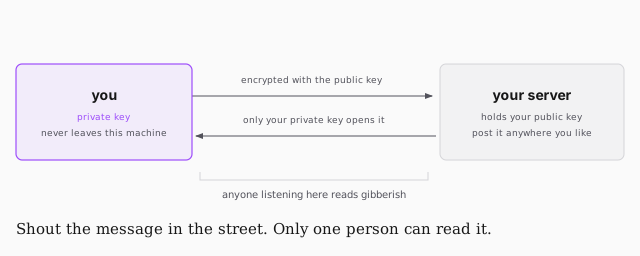
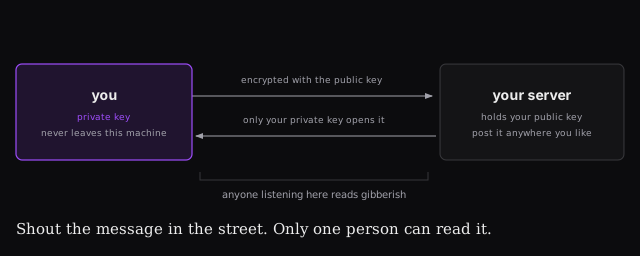
Sit with how strong that is. You can shout the message in the street and nobody learns anything, because only one person holds the half that opens it. Compare that to a password, which anyone standing between you and the server can simply overhear.
Making one
Keys live in ~/.ssh by convention — a dotfile directory, so ls -la to see
it. You may already have id_rsa in there from something else.
ssh-keygen              # name it something you'll recognise, e.g. fsfe
ls -la ~/.ssh
You'll be asked for a passphrase. You should set one. Jem skips it and says outright that he's being lazy.
The output includes a fingerprint hashed with SHA-256 and a block of "randomart" — an ASCII picture of the key. It has no functional purpose; it's there so a human can eyeball whether two keys match at a glance.
Logging in
Put the public key on the server, then:
ssh -i ~/.ssh/fsfe root@YOUR_IP
-i points at the private key — the one without .pub. root is the first
user created on any server, and it means full access.
The first time, you'll get a warning that the host's authenticity can't be established. That's SSH saying I've never seen this machine before, are you sure? It matters: IP addresses can change underneath you, so without this check you could be handed a different machine and never notice. Say yes the first time. If it ever appears again for a server you've already used, stop — that prompt is doing its job.
Every machine you've accepted is recorded in ~/.ssh/known_hosts. Type exit
to close the connection.
Skipping the -i
Specifying the identity file every time gets old. Add the key to your agent:
ssh-add --apple-use-keychain ~/.ssh/fsfe   # macOS-specific flag
ssh root@YOUR_IP
In ~/.ssh/config make sure AddKeysToAgent yes and UseKeychain yes are set.
If there's no config file, create one — it's just a file in ~/.ssh.
SSH will then try every key it knows until one works. There's no penalty for trying them all.
You can make as many keys as you want. Just keep track of which is which.