
Hardening a fresh server
tl;dr
Update, reboot, make a sudo user, install your key, prove you can log in as them — and only then disable root. Do it out of order and you lose the server permanently.
A new droplet is a blank canvas that is already being attacked. Before you build anything on it, six steps — and the order is not a suggestion.
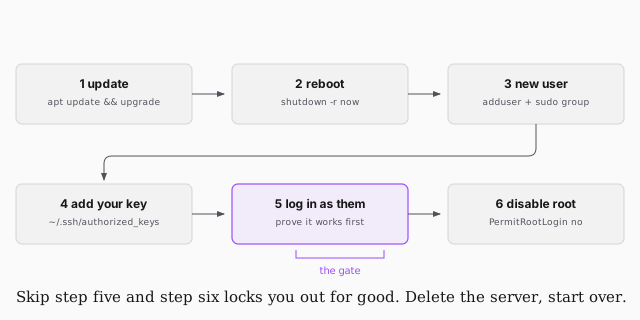
1–2. Update, then reboot
apt update && apt upgrade
shutdown -r now
apt is Ubuntu's package manager. Do this first, before installing anything
of your own — a breaking change is much easier to deal with on an empty machine
than after you've built on top of it.
Expect a prompt about newer config versions: keep the local one. Expect a
pending kernel upgrade notice; that's the layer that talks to the hardware, and
there's nothing to decide. -r is what makes it reboot rather than just stop —
without it, plain shutdown schedules itself a day out.
3. Stop being root
You're currently root. The prompt shows it, and so does the # instead of
$.
Root does not double-check anything. rm -rf / will be carried out without
a word. The point of not being root isn't that you're careless — it's that a
command needing sudo is a command worth a second of thought.
adduser jem
usermod -aG sudo jem          # add jem to the sudo group
su jem                        # switch to them
sudo cat /var/log/auth.log    # something only root can read — proves it worked
sudo is super user do: run this one command as root, then go back to being
yourself.
4. Install your key
Your public key goes in the new user's home directory so SSH can authenticate you against your private half:
mkdir ~/.ssh
touch ~/.ssh/authorized_keys
# paste the contents of your .pub file in
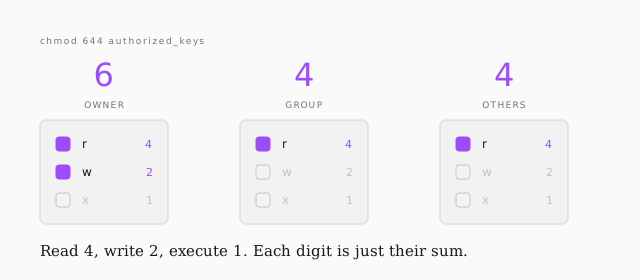
chmod 644 ~/.ssh/authorized_keys
SSH is fussy about permissions and will refuse the file otherwise. And 644 is
worth actually reading rather than copying:
5. Prove it works
Log out. Log back in as the new user, with your key. Do not skip this and do not assume.
6. Now close the door
sudo vi /etc/ssh/sshd_config     # set: PermitRootLogin no
sudo service sshd restart
Config files live under /etc, and touching them needs sudo. A daemon — a
background process, here the one listening for SSH — reads its config once at
startup and keeps it in memory, so nothing changes until you restart it.
Read your auth log
sudo cat /var/log/auth.log
On a server that's been online for minutes and does nothing, you'll already see
failed logins: root, admin, user, common names against common passwords.
Nobody targeted you. Everything connected to the internet is scanned
constantly, and that is the entire argument for keys over passwords.
If you ever genuinely need a root shell, sudo -i gets you one. Just don't live
there.